
Download Easeus ToDo Backup Home – Secure, Easy, and Automatic Personal Backup Solution
Overview
Easeus ToDo Backup Home is a personal‑focused backup and cloud storage tool developed by the globally recognised software company EaseUS, which has been delivering reliable data‑protection solutions since 2004. Designed specifically for home users, this program lets you safeguard documents, photos, videos, and even your entire Windows system with a few clicks. The software offers a free trial period, after which a paid license unlocks the full suite of advanced features.
Whether you need to clone a drive before a hardware upgrade, create a system image for disaster recovery, or simply sync files to popular cloud services such as OneDrive, Google Drive, or Dropbox, Easeus ToDo Backup Home provides a seamless, secure, and automated workflow. Its smart backup engine encrypts and compresses data on the fly, helping you save storage space while maintaining privacy. The program runs background backups every thirty minutes for incremental changes and performs a full backup once a week, ensuring that your most recent data is always protected without manual intervention.
In short, it combines ease of use with professional‑grade capabilities, making it an excellent choice for anyone who wants peace of mind without the complexity of enterprise‑level tools.
Key Features and Capabilities
- Smart Incremental Backup: Runs every 30 minutes, capturing only changed files to minimise resource usage.
- Weekly Full Backup: Automatically creates a complete snapshot of selected data every seven days.
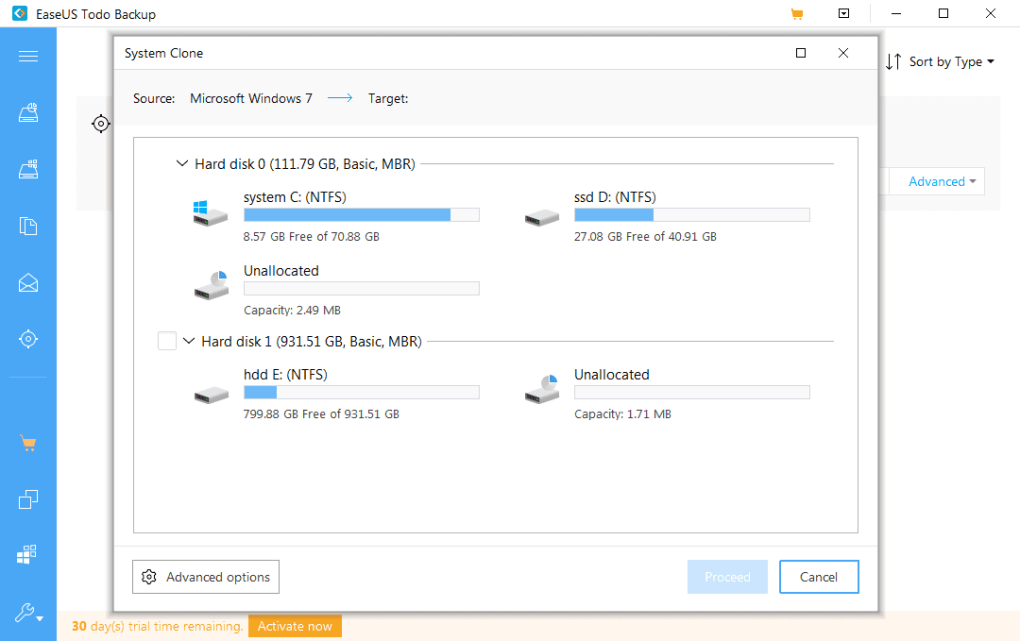
- System Clone & Migration: Clone entire disks or partitions at block level for hardware upgrades or system transfers.
- Encryption & Compression: AES‑256 encryption and high‑ratio compression protect privacy and reduce storage demands.
- Multi‑Destination Support: Save backups to local drives, external USB devices, NAS, FTP servers, CD/DVD, or cloud services (OneDrive, Google Drive, Dropbox).
- One‑Click Smart Backup: Right‑click files/folders in Windows Explorer and add them to a backup set instantly.
- Scheduled & Event‑Based Backups: Define custom schedules or trigger backups based on specific system events.
- Instant System Restore: Restore the entire OS or individual files quickly after a crash or accidental deletion.
- User‑Friendly Interface: Intuitive dashboard with clear status indicators, making it suitable for non‑technical users.
- Free Trial & Dedicated Support: Try all features for a limited period and receive responsive technical assistance.
Why These Features Matter for Home Users
Home users often juggle a variety of devices and data types, from family photos stored on a NAS to important work documents kept on a laptop. The incremental backup mechanism ensures that your computer’s performance isn’t hampered by constant full backups, while the weekly full snapshot gives you a reliable recovery point. Encryption is crucial when you store personal files on shared or cloud locations, and compression helps you make the most of limited external drive space. The ability to clone a disk means you can upgrade to a larger SSD without the fear of losing your current setup. Moreover, the right‑click “Smart Backup” integration eliminates the learning curve typically associated with backup software, allowing even senior family members to protect their data with confidence.
Installation, Setup, and Daily Usage
Installing Easeus ToDo Backup Home is straightforward. Begin by downloading the installer from the official EaseUS website. The download button is prominently displayed on the product page; click it to obtain the .exe file for Windows. Run the installer, accept the license agreement, and choose the default installation path unless you have a specific preference. The setup wizard will also prompt you to install optional drivers for disk cloning, which are recommended for full functionality.
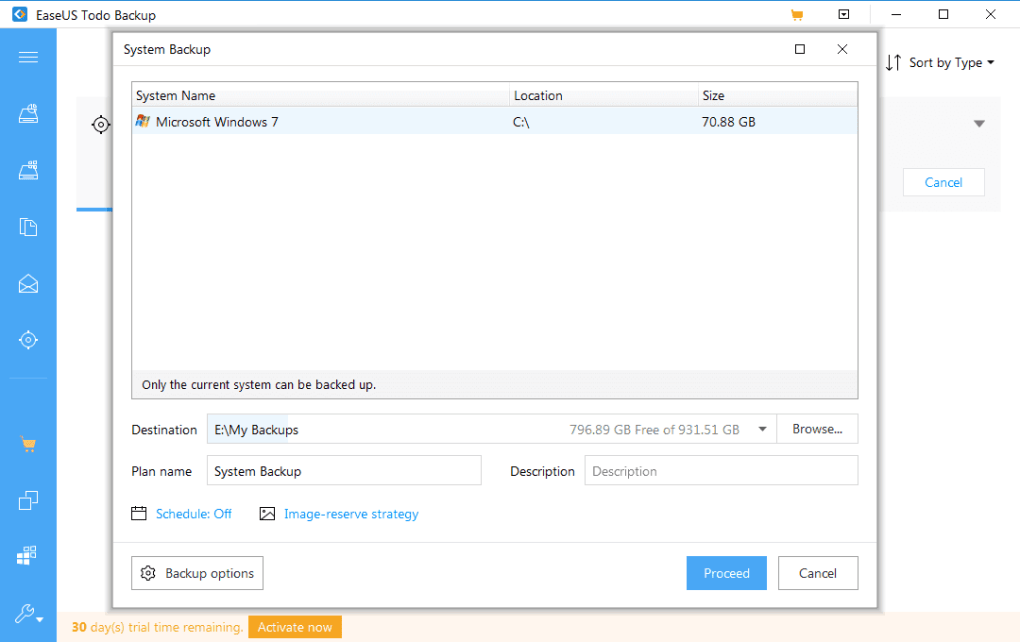
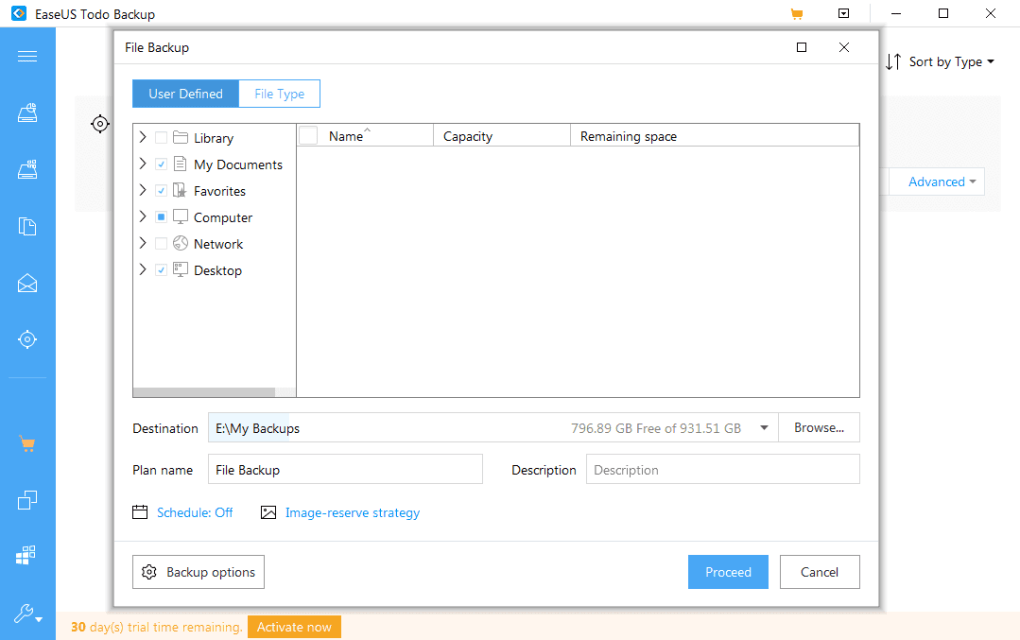
Once installed, launch the application. The first launch presents a brief tutorial that walks you through creating your initial backup set. You can either select individual folders via the “Add Files/Folders” button or right‑click directly in Windows Explorer (thanks to the integrated context menu) and choose “Add to Smart Backup.” After selecting your data, decide on a backup destination—local drive, external HDD, or any connected cloud account. The program will ask whether you want to enable encryption and compression; enabling both is advisable for personal privacy.
Scheduling is handled in the “Backup Schedule” tab. Here you can set the incremental backup interval (default 30 minutes) and the weekly full backup day and time. Advanced users can also configure event‑triggered backups, such as when the system becomes idle or when a specific USB drive is connected. All settings are saved automatically, and the backup engine runs silently in the background, displaying progress icons in the system tray.
Restoring data is equally simple. In the “Restore” section, choose the backup point you wish to revert to, then select either “Full System Restore” or “File/Folder Restore.” For a full system restore, you’ll need a bootable USB created by the program (available under the “Tools” menu). For individual files, simply browse the backup catalog, pick the needed items, and click “Restore.” The restored files will appear in their original locations or a folder of your choosing.
Throughout daily use, the application provides real‑time status updates, error logs, and notifications if a backup fails or if storage space runs low. These alerts help you address issues before they become critical, ensuring continuous protection of your personal data.
Compatibility, Pros & Cons, and Frequently Asked Questions
System Compatibility
Easeus ToDo Backup Home is built for Windows operating systems. It supports Windows 10, Windows 11, Windows 8.1, and Windows 7 (SP1) in both 32‑bit and 64‑bit configurations. While the primary focus is on desktop and laptop PCs, the software can also manage backups of external storage devices that are connected to a Windows machine. The program does not have native macOS, Android, or iOS versions, but backups can be stored on cross‑platform cloud services for access from those devices.
Pros
- Intuitive UI suitable for beginners and experienced users alike.
- Highly flexible backup destinations, including major cloud providers.
- Robust encryption (AES‑256) and compression to safeguard privacy and save space.
- Automatic incremental and weekly full backups reduce manual effort.
- Disk cloning and system migration tools simplify hardware upgrades.
- Responsive customer support and a free trial period.
Cons
- No native macOS or mobile app version.
- Full functionality requires a paid license after the trial expires.
- Advanced scheduling options may be overwhelming for very casual users.
- Initial backup of large drives can be time‑consuming.
FAQ – Frequently Asked Questions
Can I use Easeus ToDo Backup Home to back up my external USB drive?
Yes. The software detects any external storage that is connected to your Windows PC. You can add the external drive to a backup set just like any internal folder, and choose a local, network, or cloud destination for the backup.
Is the backup data encrypted during transfer to cloud services?
All cloud uploads are encrypted with AES‑256 before transmission, ensuring that your files remain private both in transit and at rest on the cloud provider’s servers.
How much storage space does the free trial require?
The trial itself is a lightweight installer (under 100 MB). However, the amount of backup data you generate depends on the size of the files you select. The software’s compression engine helps reduce the overall footprint.
Can I schedule backups to run only when my laptop is plugged in?
Yes. In the scheduling options you can set a condition that the backup starts only when the device is connected to AC power, preventing battery drain during intensive backup operations.
What happens if the backup destination runs out of space?
The program will pause further backups and display a clear warning in the dashboard. You can either clean up older backup points, increase the storage quota, or switch to an alternate destination directly from the UI.
Conclusion & Call to Action
Easeus ToDo Backup Home strikes a compelling balance between simplicity and power. Its automated incremental backups, strong encryption, and versatile storage options make it a reliable guardian for personal data, while the disk cloning and system restore features add a layer of confidence for users planning hardware upgrades or recovering from system failures. Although it lacks native support for macOS and mobile platforms, Windows users receive a comprehensive suite that covers virtually every backup scenario they might encounter at home. The free trial allows you to evaluate the full feature set before committing to a paid license, and the reasonable pricing reflects the professional‑grade capabilities it offers.
If you’re looking for a trustworthy, easy‑to‑use backup solution that protects your files, folders, and entire operating system with minimal effort, download Easeus ToDo Backup Home today. Start the free trial, set up your first automated backup in minutes, and enjoy the peace of mind that comes with knowing your data is secure, encrypted, and always recoverable.
Easeus ToDo Backup Home delivers a robust set of features wrapped in a user‑friendly interface. The only drawback is the absence of macOS support, but for Windows users seeking a reliable, automated backup tool, it stands out as a top choice.







